NTE: Neverness to Everness is free to play on PC, and the install comes down to three things: an official download, about 110 GB of free space and at least 16 GB of RAM. This guide covers the official specs, the install steps in order and what to check if the game won’t start.
What is NTE: Neverness to Everness?
NTE is a supernatural open-world RPG developed by Hotta Studio and published by Perfect World Games. You play as the city of Hethereau’s first “unlicensed” Anomaly Hunter, working out of Eibon, a rundown antique shop that takes Anomaly commissions from anyone willing to pay.
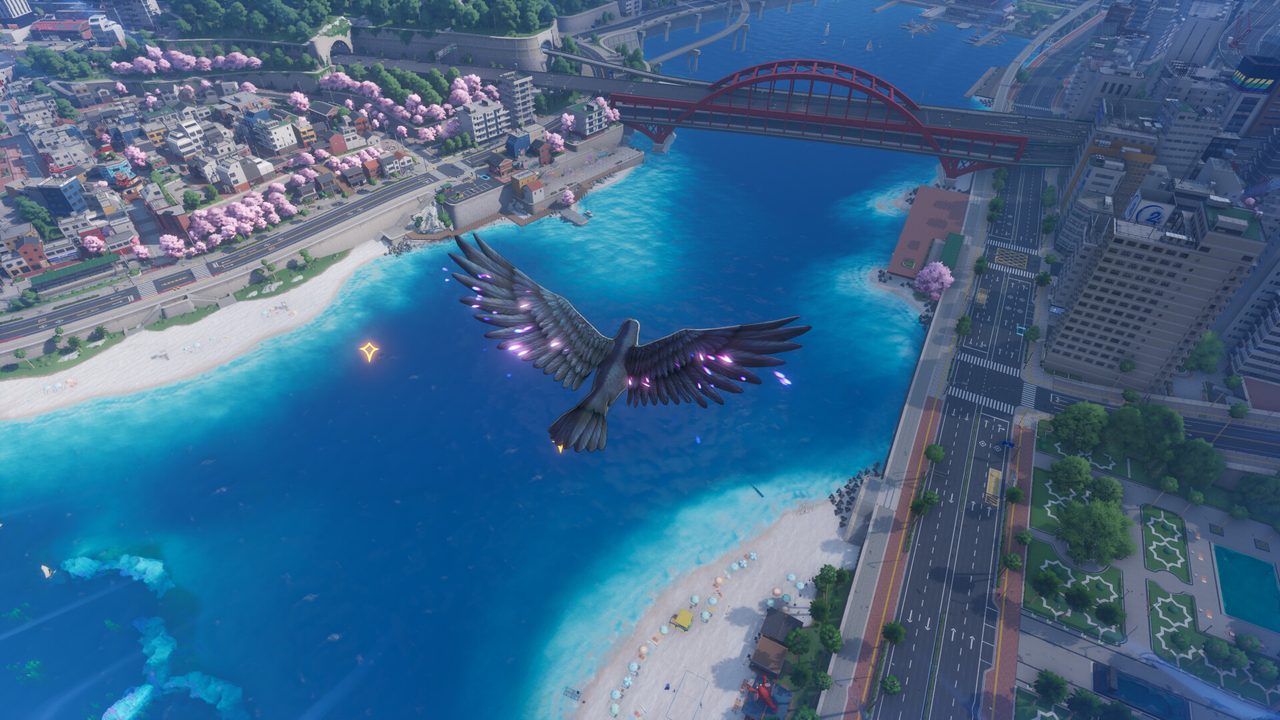
The game launched on PC on July 7, 2026. You explore Hethereau alongside a cast of companions, each with their own abilities, and the city itself is the main attraction. It is dense, neon-lit and full of side stories.
NTE PC system requirements
These are the official specs from the game’s Steam listing. NTE needs a 64-bit processor and operating system.
| Minimum | Recommended | |
|---|---|---|
| OS | Windows 10 64-bit | Windows 10 64-bit or later |
| CPU | Intel Core i7-10700 / Snapdragon X | Intel Core i7-12700 / Snapdragon X2 Elite |
| RAM | 16 GB | 32 GB |
| GPU | GTX 1660 / RX 5600 / Adreno X1 | RTX 3060 / RX 6700 / Adreno X2 |
| DirectX | 11 | 12 |
| Storage | 110 GB | 110 GB |
The RAM figure is the one to check first. A 16 GB machine meets the minimum but has little headroom with a browser and voice chat open. If you’re unsure where your PC lands, our guide to checking a game’s system requirements walks through it.
How to download NTE on PC
Work through these steps in order. The download is the slow part, so start it first.
- Free up space. Clear at least 110 GB on an SSD. An open world this size streams assets constantly, and a hard drive causes pop-in and hitches.
- Open the official download. Use the button below. It goes through our affiliate partner to the game’s official PC download, and it costs you nothing.
- Install the client. If the page sends you to Steam, click Play Game to add NTE to your library and pick the SSD as the install folder. Otherwise, run the official installer and point it at the same drive.
- Launch and sign in. Create your account or log in on first launch. Keep the email address you use, because it’s how you recover the account later.
- Let the first-launch download finish. Don’t close the game while it downloads or verifies resources. An interrupted download is the most common cause of a broken first launch.
Setting up your first session
The opening hours introduce Eibon’s crew and the Anomaly commission system before the city opens up. Before you play, it’s worth a pass through the settings.
- Graphics preset. The game picks a preset from your hardware. On a minimum-spec PC, lower shadows and draw distance before resolution, because those two settings cost the most in a dense city.
- DirectX version. The minimum spec uses DirectX 11 and the recommended spec uses DirectX 12. If DirectX 12 stutters on an older card, try DirectX 11.
- Frame rate cap. Cap the frame rate at a value your PC holds steadily. A steady 60 FPS feels smoother than a number that swings between 50 and 90.

How long does the NTE download take?
Download time depends on your connection and the install size. The table below assumes about 110 GB, and NTE downloads more resources on first launch. Times are for the download itself, at the full speed of each connection.
| Connection | Approximate download time |
|---|---|
| 50 Mbps | about 4.9 hours |
| 100 Mbps | about 2.4 hours |
| 300 Mbps | about 49 min |
| 1 Gbps | about 15 min |
Real-world speeds usually land below a plan’s advertised figure, so treat these as best-case numbers. If the download runs far slower than your connection allows, check whether another device or app on your network is downloading at the same time, then pause and resume the download.
If NTE won’t install or launch
A new open-world game that fails at launch almost always fails for a software reason: corrupted files, an old GPU driver or an overlay. Try these in the order worth trying them, and stop as soon as the problem is fixed.
- Verify the game files. On Steam, right-click NTE, then open Properties → Installed Files → Verify integrity of game files. A standalone client has a repair option in its settings.
- Update the GPU driver. New releases often need a recent driver, so install the latest one from NVIDIA, AMD, Intel or Qualcomm.
- Turn off overlays. Disable recording and performance overlays one at a time, then relaunch.
- Check free space again. Patches unpack before they install. A nearly full drive can fail an update partway through.
If none of that works, our PC game troubleshooting guide covers crashes, stutter and launch errors in more depth.
Ready to install
NTE’s download is large, but the setup itself is straightforward. Start the download, let it finish undisturbed and sign in on first launch.
This download link is an affiliate link — see our Affiliate Disclosure for how that works. It doesn’t change anything about your download or account.