Want to play your PC games on the living room TV without moving the PC? Steam Remote Play runs the game on your gaming PC and streams the picture and sound to another device, while your controller input goes back the other way. It’s free, built into Steam, and works with any Steam game streamed between your own devices.
This is one part of our complete gaming setup guide. If your PC is close enough to the TV for a cable, a direct HDMI connection gives the best picture and lowest lag.
What you need
- A host PC with Steam and the game installed. Valve recommends at least a quad-core processor on the computer running the game.
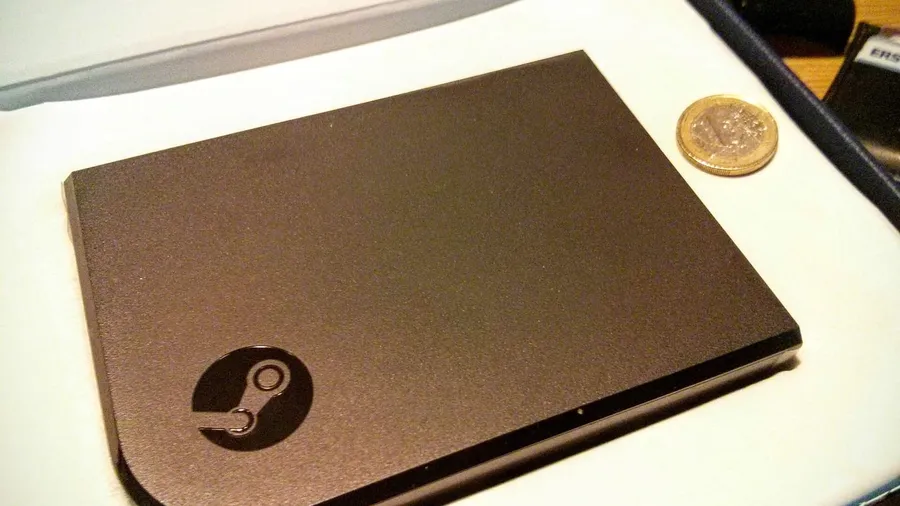
- A device to play on. Either another computer running Steam, or a device with the free Steam Link app. Valve lists the Steam Link app for iPhone, iPad, Apple TV, Apple Vision Pro, Android phones, tablets and TVs, Raspberry Pi 3 to 5, Meta Quest headsets, and Windows, macOS and Linux. The device should support hardware-accelerated H.264 video decoding, which Valve says any recent laptop or PC does.
- A good home network. Valve recommends a wired network for the best experience. See the network tips below.
- A controller. Valve’s Android app page lists the Steam Controller, Xbox One S controller, DualShock 4 and Razer Kishi and Raiju Mobile as supported, and says other controllers may also work.
The Steam Link app on Samsung Smart TVs has been discontinued. Valve points Samsung TV owners to the Apple TV or Android versions instead.
How to set it up
Streaming to a TV with the Steam Link app
- Turn on the gaming PC, open Steam and log in.
- Make sure the TV device is on the same network as the PC.
- Install the Steam Link app from your device’s app store and follow the on-screen instructions to connect it to your PC.
- Pick a game from your library and play.
Streaming to another computer
- Log in to Steam on the PC with the game installed.
- Log in to the same Steam account on the other computer.
- Open your library. The game shows as installed, with a Stream button instead of Play.
Valve suggests launching the game once on the host PC first, so it’s up to date and working, and making sure Steam is up to date on both machines.
Playing with friends: Remote Play Together
Remote Play Together lets friends join your local co-op game online, even if they don’t own it. Launch the game, open the Steam overlay with Shift+Tab, right-click a friend in your friends list and choose Remote Play Together. Supported games say so on their Steam store page.
How to fix a choppy or laggy stream
Most streaming problems are network problems. Valve’s suggestions, in order:
- Connect the gaming PC to the router with Ethernet. If the PC is on Wi-Fi as well as the device you’re streaming to, their signals interfere. Our guide to Ethernet vs Wi-Fi explains why.
- Use 5GHz Wi-Fi for the streaming device, not 2.4GHz. It has a shorter range but less interference from neighbours and other devices. Valve recommends a router that supports 802.11ac.
- Stop other heavy traffic, such as people streaming video or large downloads.
- Move things for a better signal. Walls, floors, metal and other electronics between the router and the TV device all weaken Wi-Fi.
- Lower the stream quality. Setting streaming quality to Balanced or Fast uses less bandwidth.
- Prioritise the stream. In Steam, go to Settings > Remote Play > Advanced Host Options and tick Prioritize Network Traffic. Many routers also have Quality of Service (QoS) settings for the same job.
- Update your router’s firmware and your graphics drivers on both machines.
To see whether the network is the cause, turn on the performance overlay in the advanced streaming settings. Valve says large spikes in the network line point to a network problem. While streaming, F6 toggles live statistics.
If the devices can’t find each other
- Make sure both are on the same network and subnet. Guest networks and networks with client isolation block Remote Play.
- Allow Steam through your firewall. Remote Play uses UDP ports 27031 and 27036, and TCP ports 27036 and 27037.
- Valve notes that some custom firewalls and VPN-style tools such as Hamachi can interfere with discovery.
Known limits
Valve lists a few things that don’t work over Remote Play:
- Voice recording isn’t currently supported while streaming.
- Wheels, flight sticks and other non-gamepad DirectInput controllers aren’t supported. XInput controllers are fully supported.
- Windows UAC prompts stop the stream, and some games that run with elevated permissions ignore remote mouse and keyboard input.