Goddess of Victory: Nikke is free to play on PC through Level Infinite’s official Windows client. The setup comes down to downloading the client, signing in with your existing account if you have one, and letting the game’s resources finish downloading. This guide walks through each step and the fixes for common launch problems.
What is Nikke: Goddess of Victory?
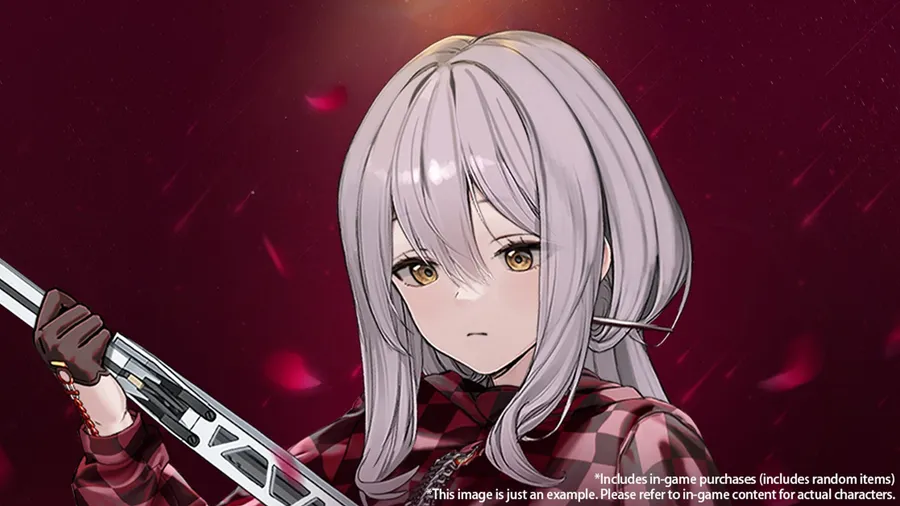
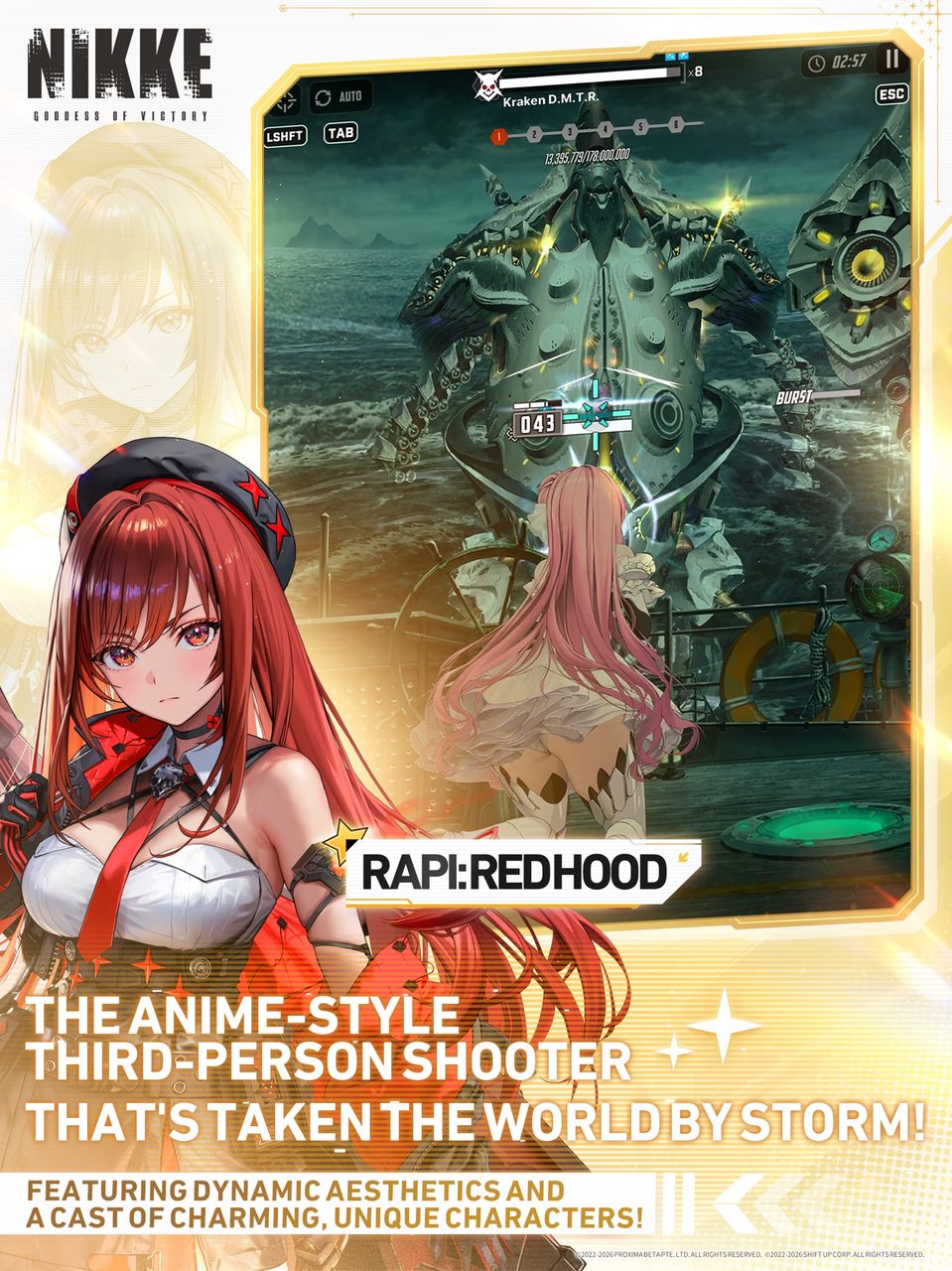
Nikke is an anime-style third-person shooter RPG published by Level Infinite. After an alien invasion, humanity has retreated underground and the surface is overrun. The NIKKE are artificially created soldiers and humanity’s last hope. You play their commander, leading squads back to the surface.
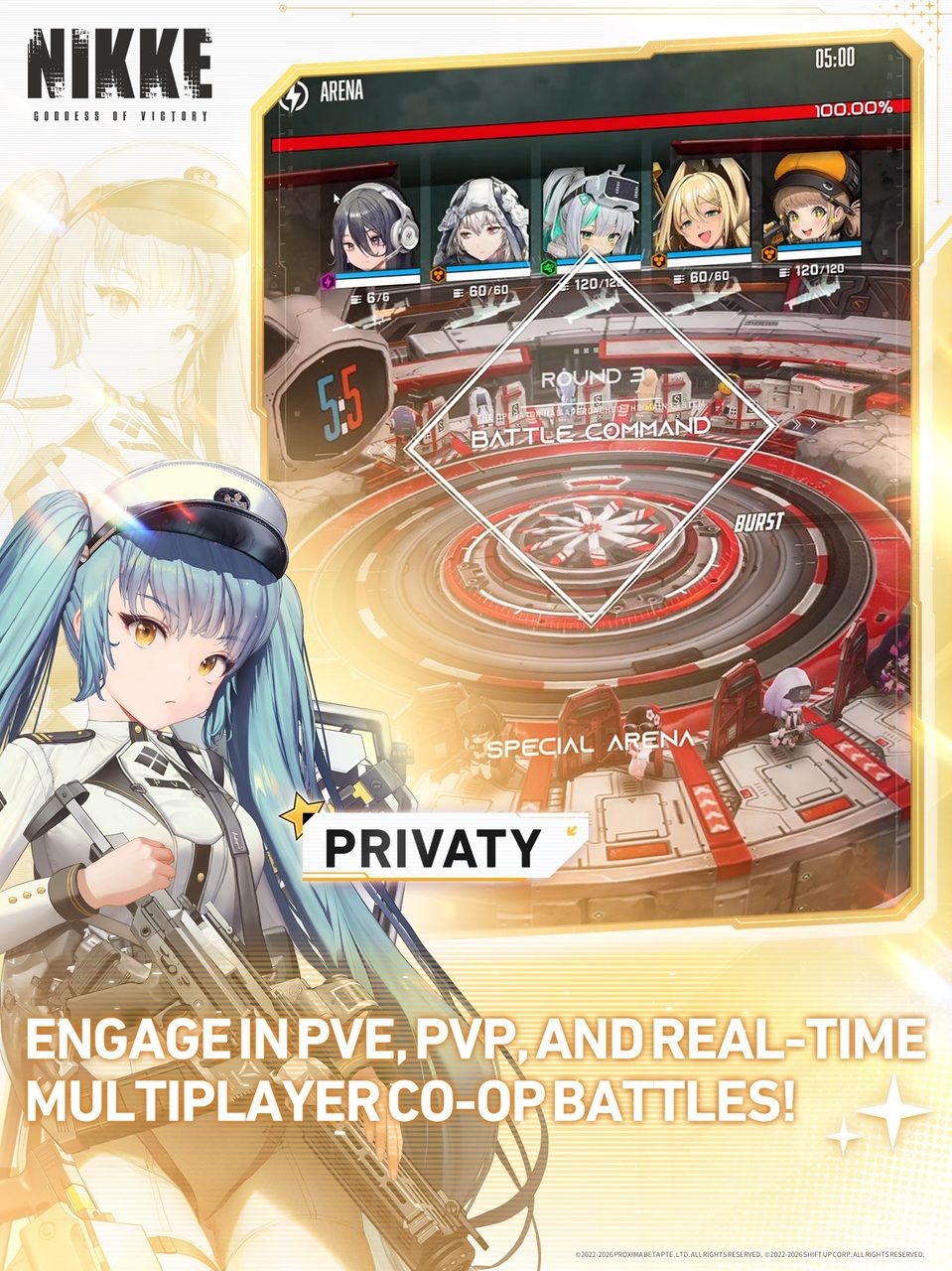
Battles are fast, with simple controls. You aim and fire, and each NIKKE’s skills combine into team bursts. Outside the main story, the game rotates through other modes and mini-games, plus PvE and PvP content.
What your PC needs
Nikke isn’t on Steam, so its full PC spec sheet isn’t listed there. Level Infinite publishes requirements alongside the official download. As a general rule for this kind of client, plan on a 64-bit version of Windows 10 or 11, a current graphics driver and a steady broadband connection, because the game is always online.
Keep some free space on an SSD for the resource download and later updates. If you’re not sure what’s in your PC, our guide to checking a game’s system requirements shows how to look it up and compare.
How to download Nikke on PC
- Open the official download. Use the button below. It goes through our affiliate partner to the official Nikke PC download.
- Run the installer. Install the client to an SSD if you have one. Resource loading between stages is faster on it.
- Download game resources. On first launch, the client downloads the bulk of the game data. Leave it running until it finishes.
- Sign in. Use the same account you linked on mobile to keep your progress. New players can create an account here.
- Finish the tutorial. It covers aiming, cover and burst skills, which are the core of every fight.
What to know as a new commander
- Bursts win fights. Each NIKKE has a burst skill, and chaining them in order is how teams deal real damage. Learn your team’s burst order early.
- Recruitment uses random draws. Nikke’s in-game purchases include random items. Decide your budget before you start, and lean on free resources from events.
- Progress is account-based. You can switch between PC and phone freely.
Should you play Nikke on PC or on mobile?
You don’t have to choose for good. Your commander account holds your NIKKE roster and story progress, so the same save opens on PC and phone. Many players use both: the phone for quick check-ins, and the PC for longer sessions.
The PC version earns its place for the longer sessions. A larger screen shows more at once, which helps with aiming during boss fights. A mouse is more precise than a fingertip, and your phone’s battery and heat stop being a factor. The trade-off is that the PC client is a separate install that needs its own updates, so let it update before a planned session rather than at the start of one.
| PC | Mobile | |
|---|---|---|
| Screen | Large, more on screen at once | Small, portable |
| Controls | Mouse and keyboard | Touch |
| Battery and heat | Not a factor | Limits long sessions |
| Best for | Long sessions | Quick check-ins |
If Nikke won’t install or launch
Try these in the order worth trying them. Stop as soon as the problem is fixed.
- Let the resource download finish. A partial download is the most common cause of crashes on first launch. Restart the client and let it resume.
- Repair the client. Use the repair or file-check option in the launcher if it has one, or reinstall the client. Your progress is stored on your account, not your PC.
- Update your GPU driver. Crashes at the loading screen usually point to the driver.
- Check your connection. Nikke is always online, so a VPN or firewall blocking it looks like a stuck login.
For anything beyond that, our PC game troubleshooting guide covers launch errors and crashes in more depth.
Ready to deploy
Install the official client, sign in and you’re a tutorial away from your first squad.
This download link is an affiliate link — see our Affiliate Disclosure for how that works. It doesn’t change anything about your download or account.