An out of video memory error has four usual causes: settings that need more VRAM than the card has, other programs holding video memory, a Windows or driver problem that blocks the allocation, or a fault elsewhere that the game reports as a memory error. The first two are the common ones.
This guide covers what the out of video memory error means, how to check your VRAM, and the fixes in the order worth trying them. For crashes with a different message, start with our PC game troubleshooting guide.
What does “out of video memory” mean?
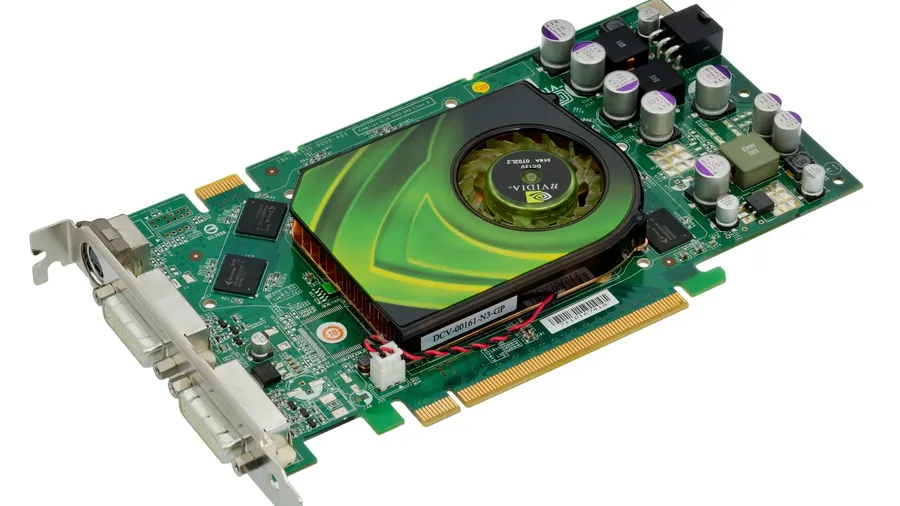
VRAM is the memory on the graphics card that holds textures, geometry and the frames being drawn. An out of video memory error means the game asked the graphics driver for more of that memory and the request failed.
The wording depends on the engine. Unreal Engine games show Out of video memory trying to allocate a rendering resource, followed by advice to lower the resolution and close other applications. Other games report a DirectX error such as DXGI_ERROR_DEVICE_REMOVED or E_OUTOFMEMORY, or close without a message.
Windows gives each graphics card two pools. Dedicated GPU memory is the VRAM on the card. Shared GPU memory is ordinary system RAM the card may borrow, and Microsoft’s DirectX team notes that Windows limits it to half of the physical memory. Shared memory is far slower, so a game that spills into it stutters before it fails.
| What you see | What it points to |
|---|---|
| Error after raising textures, resolution or ray tracing | Settings exceed your VRAM |
| Error after long sessions or many alt-tabs | Background apps, or a memory leak in the game |
| Error at launch or while shaders compile | Page file, wrong GPU, driver or CPU stability |
| Error in one game only, on any settings | A bug in that game or its current patch |
| Dedicated GPU memory total is far below your card’s rated VRAM | Game is running on integrated graphics |
How to check how much VRAM you have
Check the total and the amount in use before you change anything.
- Open Task Manager with Ctrl + Shift + Esc and select Performance.
- Select the GPU entry for your graphics card. PCs with integrated graphics show two entries, so pick the one named after your NVIDIA, AMD or Intel Arc card.
- Read Dedicated GPU memory. It shows usage against the total, such as
6.8/8.0 GB. - Leave it open and play. Use Alt + Tab after a few minutes in a busy area and read the figure again.
If usage sits at or near the total, the game needs more VRAM than you have at these settings. If it is well below the total when the error appears, skip to the section on bugs and system causes.
Lower texture and resolution settings
These settings use the most video memory. Change them in this order and retest after each one.
- Lower texture quality one step. Textures are the largest user of VRAM, so one step down frees more memory than any other single change. Uninstall any optional high-resolution texture pack.
- Turn off ray tracing. Ray tracing keeps extra scene data in video memory on top of its processing cost.
- Turn off frame generation. It stores additional frames and data, which adds to VRAM use.
- Lower the resolution or enable an upscaler. DLSS, FSR or XeSS in Quality mode renders fewer pixels, which shrinks the buffers the game keeps in memory.
- Lower shadow quality. Higher shadow settings use larger shadow maps.
Many games show a VRAM estimate bar in the graphics menu. Keep the estimate below your total with some headroom, because Windows and other programs need a share. Our guide to what each PC graphics setting does explains the trade-offs in detail.
Restart the game after changing texture quality. Some games don’t release the old textures until they reload.
Close VRAM-heavy background apps
Other programs hold video memory too, and on an 8GB card that share matters.
- Open Task Manager and select Details.
- Right-click a column header, choose Select columns, and tick Dedicated GPU memory.
- Sort by that column to see what is using VRAM besides the game.
- Close the largest ones. Browsers with many tabs or video playing, launchers, chat apps, animated wallpaper tools and recording software are the usual entries.
Overlays count as well. Turn off the ones you don’t use in Steam, Discord and your GPU software. A second monitor showing video also takes a small share.
Update the driver and the game
A graphics driver can mismanage memory in one game and be fixed in the next release. Game patches fix memory leaks the same way.
- Update the graphics driver from the NVIDIA app, AMD Software or Intel’s graphics software. Choose a clean installation if the installer offers it.
- Update the game and read the patch notes for memory or crash fixes.
- Verify the game files in the launcher. A damaged file can cause a failed load that the game reports as a memory error.
- Try the other DirectX mode if the game offers both. Some games use less video memory in DirectX 11 than in DirectX 12.
When it’s a bug, not your GPU
If Task Manager shows free VRAM when the error appears, the message is misleading. Check these causes in order.
The game is running on integrated graphics. On a laptop, open Settings → System → Display → Graphics, select the game, and set it to High performance. That assigns it to the dedicated card.
The page file is disabled or too small. Windows backs graphics allocations with system memory, and that counts against the commit limit, which Microsoft defines as RAM plus the page files. Open Settings → System → About → Advanced system settings, then Performance → Settings → Advanced → Virtual memory → Change, and tick Automatically manage paging file size for all drives. Restart afterward.
An overclock or undervolt is unstable. Remove any GPU overclock, CPU undervolt or memory tuning and test again.
The CPU is unstable. RAD Game Tools, which makes the compression library used by many Unreal Engine games, states that instability in some Intel 13th and 14th generation desktop processors can show up as spurious out of video memory errors, even though the CPU is the cause. The fix is delivered through motherboard BIOS updates. Before you update a BIOS, read the motherboard maker’s instructions and don’t interrupt power during the update, because a failed update can leave the board unable to start. RAD notes that the damage can be permanent, so a processor that still fails afterward needs a warranty claim.
The game has a memory leak. If VRAM use climbs steadily during a session and the error arrives after an hour or two, restart the game at intervals until a patch arrives.
If nothing worked
Test another demanding game at similar settings. If only one game fails, report it to the developer with your GPU model, driver version and the exact error text, and watch the patch notes.
If several games fail on a card with free VRAM, treat it as a stability problem. The PC gaming performance guide covers temperature checks and memory settings such as XMP and EXPO, which are the next things to rule out.