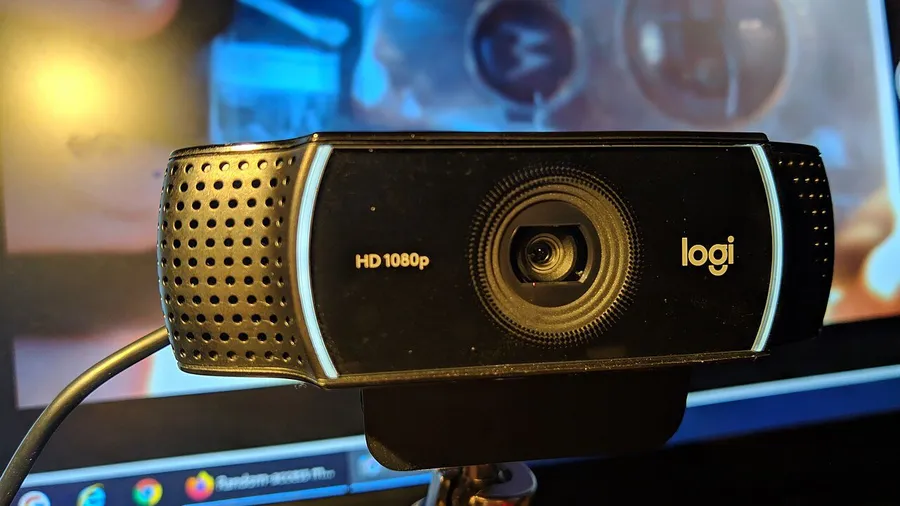
The facecam is a small corner of your stream, but viewers notice when it looks muddy. Here’s what to look for, and the fixes that matter more than the camera.
Streaming gear is covered alongside the core peripherals in our guide to buying gaming gear.
Specs that matter
- 1080p at 60fps: the practical target for streaming. 60fps looks noticeably smoother in a facecam than 30fps. Check that the camera can do 60fps at the resolution you’ll actually use.
- Sensor size and low-light performance: a bigger sensor handles dim rooms better. This is the main difference between budget and premium webcams, even when the resolution is the same.
- Field of view: about 78° is typical for a desk facecam. Wider cameras show more of your room, which isn’t always what you want.
- Manual controls: exposure, white balance and focus that you can lock stop the image from pulsing or refocusing mid-stream.
Lighting beats the camera
A budget webcam with good light looks better than an expensive one in a dark room.
- Put a soft light in front of you, slightly above eye level. A key light or ring light works, and even a lamp aimed at a white wall helps.
- Don’t sit with a window behind you. The camera will expose for the window and leave your face dark.
- Match color temperature. Mixing warm room bulbs with cool daylight gives odd skin tones.
Settings to lock in OBS
- Set the webcam’s resolution and FPS manually in the video capture device properties.
- Turn off auto-exposure if your camera allows it, so the image doesn’t flicker as the game’s light hits your face.
- Use auto white balance off with a fixed value once your lighting is set.
When to skip the webcam
If you already own a recent mirrorless camera or a good phone, capture software and a capture card or app can turn it into a much better facecam than most webcams.
Upgrade Your Stream Audio