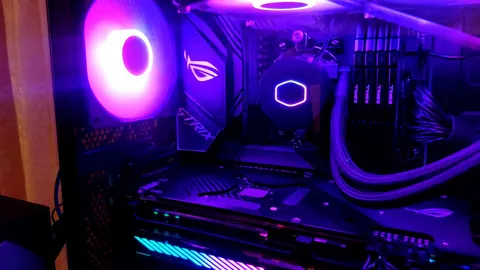
If your PC is randomly stuttering, throttling mid-session, or shutting down during longer gaming sessions, temperature is one of the first things worth ruling out. Here’s how to actually watch it in real time, and what the numbers mean once you’re looking at them.
Temperature is one of the things to measure in our PC gaming performance checklist.
Free tools that show live temperatures
- MSI Afterburner — despite the name, it works with GPUs from any manufacturer, not just MSI. It shows an on-screen overlay in-game with live CPU/GPU temperature, clock speed, and usage, and it’s free.
- HWMonitor — a lightweight standalone app that shows current, minimum, and maximum temperatures for every sensor on your system, useful for spotting spikes you’d otherwise miss.
- Task Manager — as a quick built-in check, the Performance tab shows current GPU temperature on most systems (Windows 11) without installing anything, though it won’t log history.
For actually watching temps while playing, an in-game overlay (MSI Afterburner + RivaTuner Statistics Server, which installs alongside it) is the most practical option — you see numbers update live in the corner of the screen without alt-tabbing out.
Check If Heat Is Bottlenecking Your BuildWhat counts as normal
- CPU under load: Most modern CPUs are designed to run safely up to around 90-95°C under sustained full load, though comfortable gaming temps are usually well below that — often in the 60-80°C range depending on the cooler.
- GPU under load: Commonly fine up to roughly 83-85°C on modern cards; many will automatically throttle clock speeds before reaching a genuinely dangerous temperature, which is a safety feature, not a malfunction.
- Idle temps: Should generally sit well below load temps — a system running hot even at idle, with nothing demanding running, is a stronger sign of an airflow or dust problem than one that just runs warm during a game.
Exact safe ranges vary by specific CPU/GPU model, so if you want to be precise, check your manufacturer’s rated maximum operating temperature rather than relying on general rules of thumb.
What to do if temps are consistently high
- Check airflow first. Dust buildup on fans and heatsinks is the single most common cause of rising temps over time — a can of compressed air and 10 minutes is often the entire fix.
- Reapply thermal paste if the PC is a few years old. Paste dries out and loses effectiveness over time, especially on pre-built systems that may have shipped with a thin factory application.
- Check case airflow, not just the cooler. A great CPU cooler in a case with poor intake/exhaust balance will still run hot because it’s just recirculating warm air.
- Confirm fan curves are actually ramping up. Some pre-built PCs ship with conservative fan curves tuned for quiet operation over cooling — software like Afterburner lets you set a more aggressive custom curve.
If cooling checks out but performance still isn’t there
High temps that are otherwise within normal range usually aren’t your bottleneck — mismatched CPU/GPU pairing or background software is a more common culprit. Our bottleneck calculator can help narrow down whether your CPU or GPU is actually the limiting factor before you spend money on cooling upgrades that won’t move the needle.