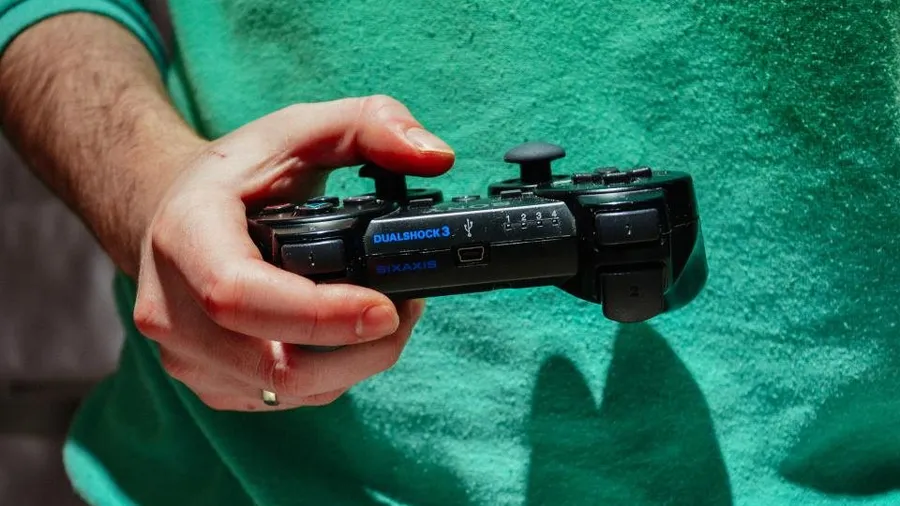
The DualSense is a great PC controller once it’s set up. Windows just doesn’t treat it as a native Xbox pad, so there are a few extra steps.
To compare controller options before buying, see the controllers section of our peripheral buying guide.
Step 1: Connect it
Wired (recommended): plug it in with a USB-C cable that carries data, not just power. Windows recognizes it right away. Wired is also required for full haptics and adaptive triggers in most supported games.
Bluetooth:
- On the PC, open Settings → Bluetooth & devices → Add device → Bluetooth.
- On the controller, hold the PS button and the Create button (the small one to the left of the touchpad) until the light bar starts flashing.
- Select Wireless Controller from the list.
Step 2: Set it up in Steam
- Open Steam → Settings → Controller.
- Make sure PlayStation controller support is enabled.
- Open the controller’s settings there to test the inputs, calibrate the gyro, and choose whether games show PlayStation button prompts.
Most Steam games now work with the DualSense with no further steps.
Step 3: Non-Steam games
If a game from another launcher doesn’t detect the controller:
- Add it to Steam with Games → Add a Non-Steam Game to My Library, then launch it from Steam so Steam Input handles the translation.
- Use a translation tool such as DS4Windows, which makes Windows see the controller as an Xbox pad.
- Check the game’s own settings. Some PC ports support the DualSense natively, including haptics.
Troubleshooting
- Doubled inputs: two translation layers are running at once (for example, Steam Input and DS4Windows). Turn one off.
- Bluetooth lag or dropouts: move closer to the PC, or use a better Bluetooth adapter. Front USB ports and cheap dongles can cause problems.