Input lag is the delay between physically doing something — moving your mouse, pressing a key — and seeing it happen on screen. It’s rarely one single cause; it’s a chain, and being slow anywhere in that chain adds up. Here’s where to actually look, roughly in order of impact.
Input lag is one of the three parts of performance described in our guide to frame rate, frame times and latency.
1. Your display is usually the biggest factor
A 60Hz monitor has a hard ceiling on how responsive anything can feel, no matter how fast your PC or peripherals are — it can only show a new frame every ~16.7ms. Moving to a 144Hz or higher refresh rate display cuts that floor dramatically and is typically the single biggest input lag improvement available, bigger than any peripheral or software change.
If you’re not ready to upgrade your monitor, make sure VSync is off (it can add a full frame or more of delay) and, if your GPU control panel offers it, enable a low-latency mode (NVIDIA Reflex, AMD Anti-Lag, or similar) — these are specifically built to cut the delay between your GPU rendering a frame and it reaching the screen.
2. Peripherals: polling rate and build quality
- Polling rate is how often your mouse/keyboard reports its position to the PC, measured in Hz. 125Hz (the old USB default) reports every 8ms; 1000Hz reports every 1ms. Most gaming mice let you set this in software — there’s rarely a reason not to run 1000Hz if your mouse supports it.
- Wired vs. wireless: modern gaming-grade wireless (2.4GHz dongle-based, not Bluetooth) performs close enough to wired to not matter for most players. Bluetooth itself does add noticeably more latency and is worth avoiding for competitive play specifically.
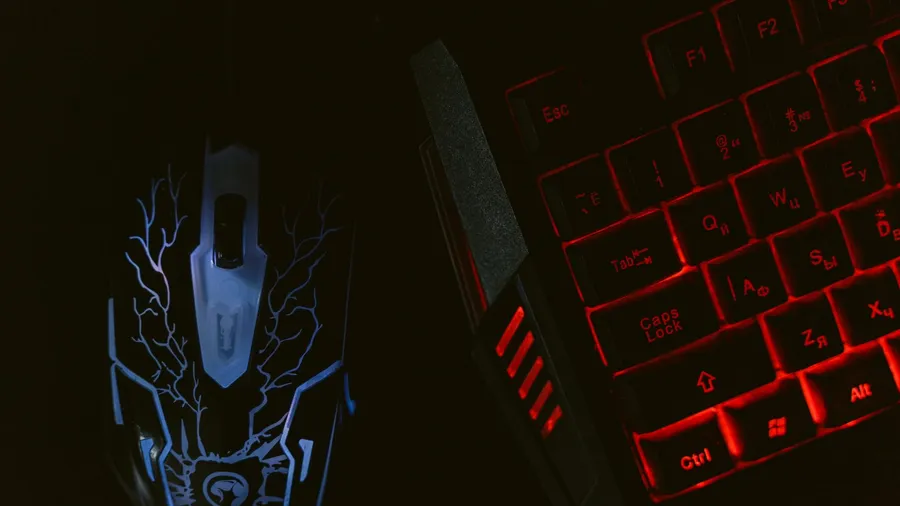
- Cheap peripherals add real latency. Budget mice and keyboards often use slower internal processing and lower native polling rates that aren’t user-adjustable — this is one area where hardware quality has a direct, measurable effect rather than being a marginal upgrade.
3. In-game settings that quietly add delay
- Frame rate cap and V-Sync, covered above — turning V-Sync off and letting your frame rate run closer to your monitor’s max (or slightly under it) generally feels more responsive than capping low.
- “Triple buffering” can add a frame or more of latency in some engines even with V-Sync off, depending on the game — worth toggling off if your specific title exposes the option and you’re chasing the lowest possible delay.
- Background overlays (chat apps, capture software, browser tabs) all consume CPU cycles that can introduce inconsistent micro-stutters, which read as input lag even when the raw number is fine.
4. Windows-level settings that help
Set your mouse pointer speed to match 1:1 with no acceleration curve in Windows settings if your game doesn’t already override it — Windows’ default pointer acceleration can make aim feel inconsistent between mouse movements of different speeds, which is a different problem from raw lag but often gets blamed on it.
Where to actually spend effort first
If you’re trying to prioritize: a higher refresh-rate monitor beats every peripheral change combined, low-latency mode/V-Sync-off settings are free and take two minutes, and peripheral upgrades matter most if you’re currently on genuinely budget hardware rather than mid-range gear. Chasing incremental gains between already-good 1000Hz peripherals has real diminishing returns compared to those three.
Compare Gaming Keyboards