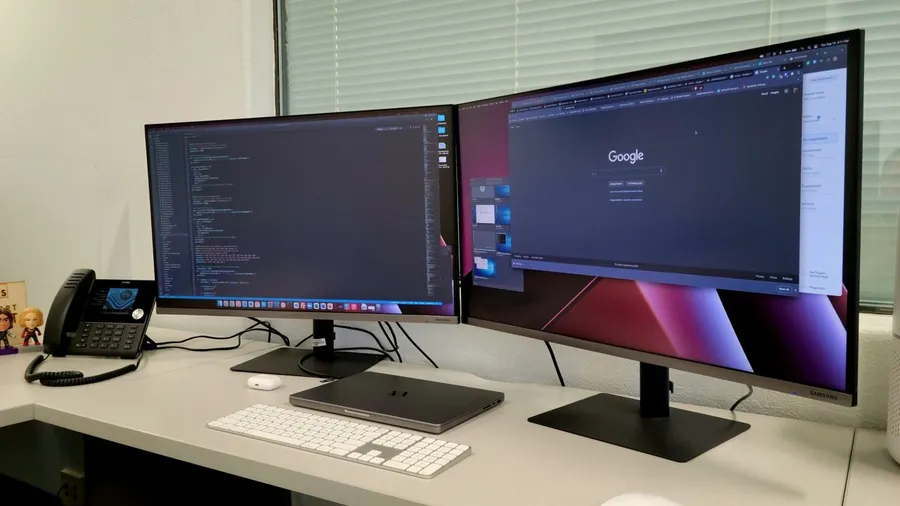
A second monitor is one of the most useful upgrades for a gaming desk. It gives you Discord, guides, stream chat or music without alt-tabbing out of your game. Here’s how to set one up properly.
The display section of our gaming setup planning guide covers single screens and TVs as well.
Choose a layout
- Main monitor centered, second off to the side: best for gaming. Your main screen stays straight in front of you, and you turn your head a little to glance at the second one.
- Both angled in a shallow V: better for productivity, where you use both screens equally. For gaming, it puts the bezel gap in the middle of your view.
- Second monitor vertical: great for chat, code or long web pages, and it takes up less desk width.
Line up the top edges of both screens, or the centers if they’re different sizes, so moving your eyes between them feels natural.
Windows settings
- Open Settings → System → Display and click Identify. Drag the screen icons so they match where the monitors physically sit.
- Select your gaming monitor and check Make this my main display. Most games open on the main display.
- For each monitor, go to Advanced display and set the refresh rate to the highest it supports. Windows often defaults to 60Hz.
Fixing common problems
- Game opens on the wrong screen: set the correct main display, or change the display selection in the game’s video settings.
- Mouse slips onto the second screen: play in exclusive fullscreen, or use a game’s cursor-lock option. Borderless windowed lets the cursor escape.
- Stutter while video plays on the second screen: turn on hardware-accelerated GPU scheduling in Graphics settings, or try turning off hardware acceleration in the browser playing the video.
- Second monitor won’t turn on: try a different cable or port, and plug both monitors into the graphics card, not the motherboard.