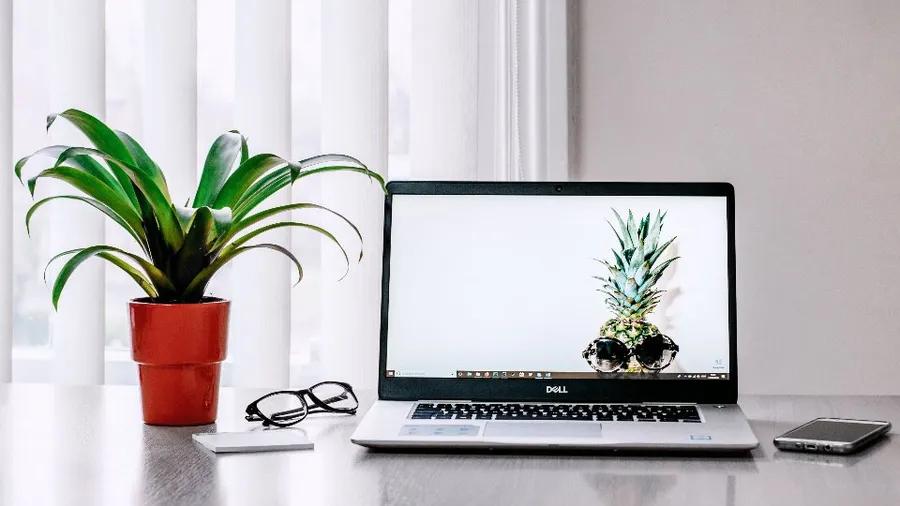
A gaming laptop at a desk can feel much like a desktop, with better ergonomics, better cooling and a bigger screen. Here’s the setup.
Laptop desks are covered alongside other setups in our guide to building a comfortable gaming setup.
1. Add an external monitor
- Connect to the port wired directly to the dedicated GPU. On many laptops that’s the HDMI port or one specific USB-C/Thunderbolt port. The manual or the manufacturer’s spec page will say which.
- Set the external screen to its max refresh rate in Windows display settings.
- If your laptop has a MUX switch or an “Advanced Optimus”/dGPU-only mode, turning it on can boost performance, especially on the built-in screen.
2. Raise the laptop and fix cooling
Gaming laptops pull air in from underneath, so they overheat on soft surfaces and flat desks.
- Put it on a laptop stand or cooling pad to lift the rear and give the intake vents room to breathe.
- Keep the exhaust vents (sides or back) clear of walls and cables.
- Clean dust out of the vents every few months.
A stand also lets you use the laptop’s own screen as a second monitor at a more comfortable height.
3. Use a real keyboard and mouse
Laptop keyboards get hot and are cramped for gaming. An external keyboard and mouse put your hands at a proper desk height and away from the heat.
4. Simplify with a dock (optional)
A USB-C or Thunderbolt dock lets you connect everything (monitor, peripherals, Ethernet, charging) with a single cable. Check two things first:
- the dock supports your monitor’s resolution and refresh rate,
- your laptop can charge at full wattage through it. Many gaming laptops still need their barrel charger when gaming.
5. Power settings
Always game plugged in, and set the manufacturer’s control app to its performance mode. On battery, gaming laptops cut performance sharply.
Check for Overheating