Many gamers play on both a PC and a console. Here’s how to fit them on one desk without constantly swapping cables.
Shared console and PC desks are one of the special setups in our complete gaming setup guide.
Share the monitor
Most gaming monitors have two or more video inputs:
- PC → DisplayPort (best for high refresh rates and adaptive sync on PC).
- Console → HDMI.
Then switch inputs from the monitor’s menu. Some monitors also have auto input switching, which jumps to whichever device turns on.
Check which HDMI port on the monitor supports the console’s 120Hz mode. Often only one does.
Share the audio
- Easiest: plug your headset or speakers into the monitor’s 3.5mm output. The monitor passes through audio from whichever input is active.
- Hear both at once: use a small USB/analog mixer or a headset base station with several inputs. That way you can hear PC Discord while playing on the console.
- Wireless headsets: some come with dongles for multiple platforms, or can connect to two sources at once.
Share peripherals
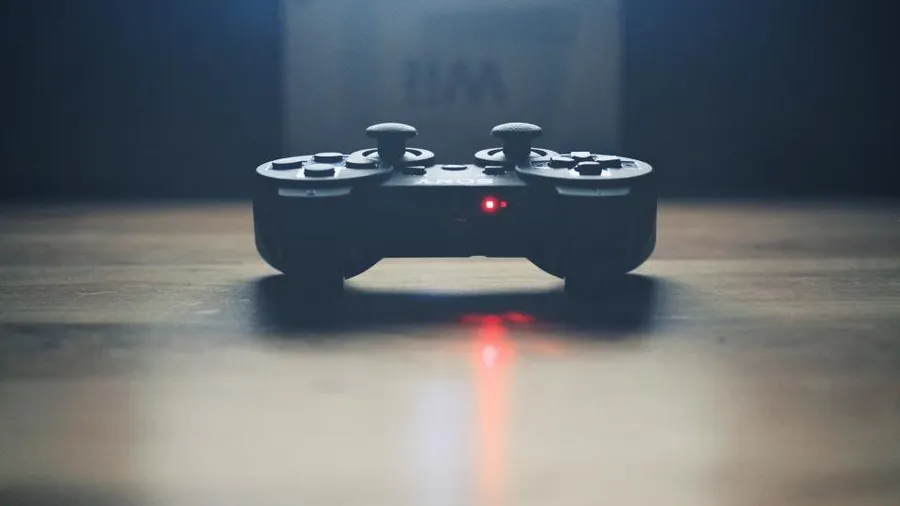
- Controllers: an Xbox controller works on both Xbox and PC. A DualSense works on PC through Steam Input.
- Keyboard and mouse: consoles only support them in some games. A USB switch lets one set move between devices with a button press.
Physical layout
- Put the console on a shelf or under the desk with plenty of airflow. Consoles need breathing room just like PCs.
- Run a single power strip and label the cables. It makes future changes easier.
- A short HDMI extension at the front of the desk is handy for a Switch dock or capture devices.