The best webcam for streaming is a 1080p camera that can run at 60 frames per second. Your facecam usually fills a small corner of the screen, so smooth motion and good low-light performance matter more than 4K resolution.
Lighting matters more than any camera. This guide compares four webcams, from a budget favourite to a 4K model, then covers how to set up your light and camera so any of them looks its best.
As an Amazon Associate, Gamesness earns from qualifying purchases. We have not bench-tested these webcams ourselves. The picks are based on the manufacturers’ published specifications, and each link goes to the Amazon listing we checked for that model.
Streaming webcams compared
| Webcam | Max resolution | 1080p frame rate | Connection | Privacy shutter | Best for |
|---|---|---|---|---|---|
| Logitech C920x | 1080p | 30fps | USB-A | No | Budget |
| Elgato Facecam MK.2 | 1080p | 60fps | USB-C | Yes | Streamers using OBS |
| Razer Kiyo Pro | 1080p | 60fps | USB 3.0 | Clip-on cover | Dim rooms, adjustable field of view |
| Logitech MX Brio | 4K at 30fps | 60fps | USB-C | Yes | 4K recording and cropping |
Specifications are the manufacturers’ figures. Uncompressed 1080p60 needs a USB 3.0 port, so plug the faster cameras into a blue or USB-C port on your PC.
The picks
Logitech C920x: best budget webcam
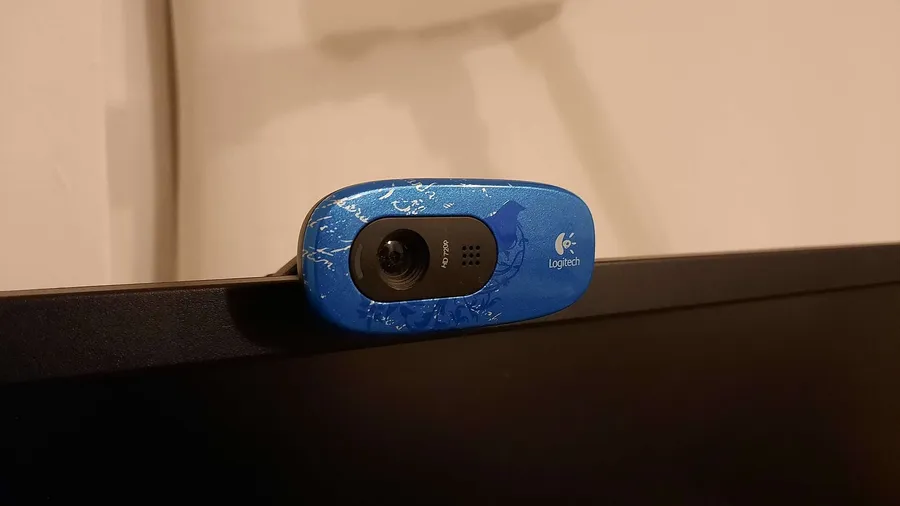
The C920x is one of the most used webcams ever made. It records 1080p at 30fps, with autofocus, automatic light correction and two microphones for stereo audio.
It has no privacy shutter, and 30fps looks less smooth than the cameras below. For a first stream, video calls or a small facecam, it is the cheapest way to look clear.
Check price on AmazonElgato Facecam MK.2: best for streamers
The Facecam MK.2 records 1080p at up to 60fps, uncompressed over USB 3.0, which keeps latency low and avoids compression blocks. It supports HDR at 1080p30, and has a slide-across privacy shutter.
Elgato’s free Camera Hub software gives you manual control over exposure, shutter speed, ISO and white balance, close to what you would get on a dedicated camera, and saves the settings to the camera. It works well with OBS and Elgato’s Stream Deck.
Check price on AmazonRazer Kiyo Pro: best in low light
The Kiyo Pro records uncompressed 1080p at 60fps over USB 3.0. Razer built it around an adaptive light sensor, designed to keep the picture clean in a dim gaming room, and it supports HDR at 30fps.
Its wide-angle lens lets you choose a 103°, 90° or 80° field of view in Razer Synapse, so you can show your whole desk or just your face. It is Streamlabs certified and works with OBS, XSplit and the usual call apps.
Check price on AmazonLogitech MX Brio: best 4K webcam
The MX Brio records 4K at 30fps or 1080p at 60fps. The extra resolution is useful when you crop to a tight shot of your face, or record full-screen video for YouTube.
Logitech’s software adds manual control over ISO, shutter speed and white balance, and the camera has AI-assisted exposure, dual noise-reducing microphones and a built-in privacy shutter. It connects over USB-C.
Check price on AmazonHow to look good on any webcam
Light your face from the front. Put a soft light behind your monitor or beside it, slightly above eye level. A window or bright light behind you turns you into a silhouette. Our gaming room lighting guide covers lamp placement.
Mount the camera at eye level. On top of the monitor is usually right. If you use a tall monitor arm, a small tripod behind the screen keeps the camera at eye height rather than looking up at you.
Lock your settings. Automatic exposure and white balance can pulse as your screen changes colour. Once your lighting is set, fix exposure and white balance in the camera’s software.
Check the frame rate in OBS. In OBS, open the webcam source’s properties, set the resolution and FPS to custom, and choose 1920x1080 at 60fps. If the image looks choppy, add light before lowering settings.
For more on choosing between models, read how to choose a webcam for streaming, and pair your camera with one of the best USB microphones for gaming and streaming. Our beginner streaming setup guide puts it all together.